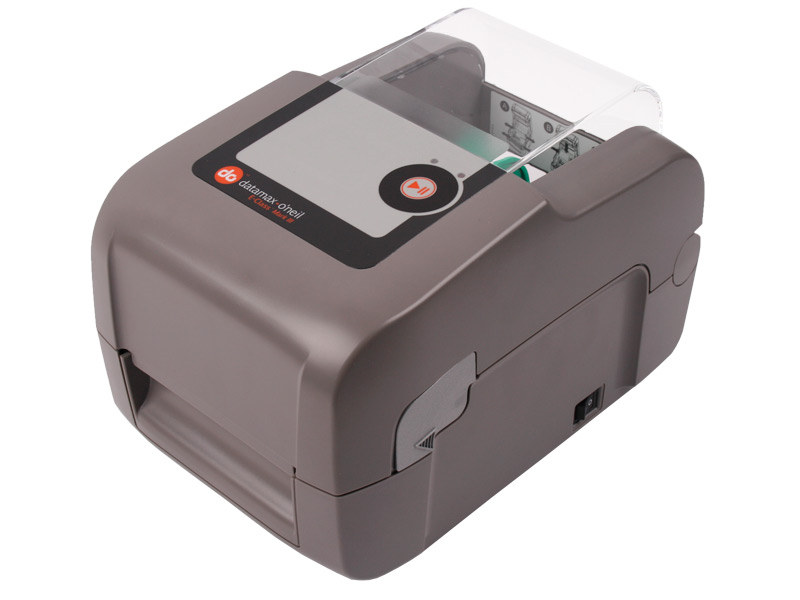
How to Troubleshoot the Datamax E Class Mark III

How to Troubleshoot the Datamax E Class Mark III

What each status light indicator means
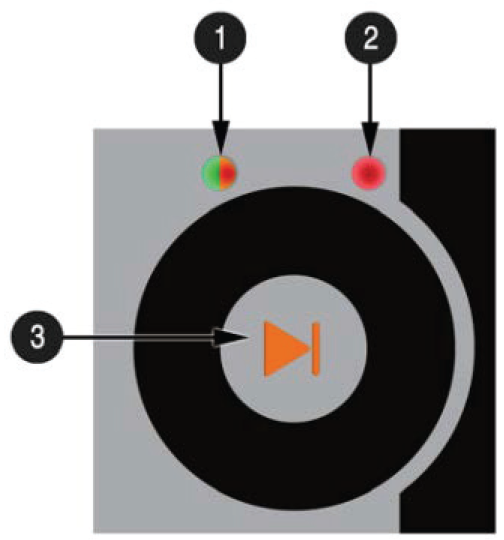


LED2

LED1

LED1

Colour

Red

Orange

Green

Flashing

  1. Out of stock
  2. Label jam
  1. Paused
  2. Busy
  1. Processing
  2. Busy

Solid

Top of the label not found

Paused

Ready to print


Using the multi-function button to troubleshoot errors

Perform the following if:

  • the printer is not printing
  • the labels are printing unevenly
  • they do not stop at the tear off line.


LED 2 

LED 1  

LED 1 

Colour

Red

Orange

Green

Press and hold for around 17 seconds (release when LED #1 blinks Red)

  1. Factory reset
  2. Clears fault
  3. Cancel batch


Press and hold for around 12 seconds (release when LED #1 blinks Green)


  1. Quick calibration
  2. Clears fault
  3. Cancel batch

Press and hold for around 5 seconds (release when LED #1 blinks Orange)


  1. Print network report


Short Press on the #3 button


  1. Pause/unpause
  2. Feed to next label


How to clean the printer

Perform a printer cleanup monthly or as needed. The printer needs a cleanup if there are streaks on the labels, missing barcodes, or the labels are lightly printed on the right side.

  1. Wait for the printhead to cool. Remove all labels and debris from the printer, be careful not to scratch the printer and do not use abrasive cleaners
  2. Rotate the roller and wipe thoroughly with alcohol wipes
  3. Use the alcohol wipes to gently clean the thermal printing strip present under the printer head
  4. Clean the media sensor located at the floor of the printer and the matching sensor under the printer cover
  5. Reload the labels. Close the printer cover and press downward until it locks
  6. Press the multi-function button momentarily to feed a label.

You will need isopropyl alcohol wipes for the cleaning process.


    • Related Articles

    • How to Factory Reset a Thermal Printer

      Honeywell PC42E-T Successor to the Datamax E-Class MKIII Spare parts are not sold by the manufacturer. Click to Zoom 1. Turn off the printer and wait 30 seconds 2. Press in on the Cover Latches on both sides of the printer and open the Printer Cover ...
    • GoSweetSpot: Models

      Available Rate Model Attribute Type Description quoteId Guid Unique rates calculation identifier. carrierId integer Id of carrier. carriername string Display name of courier provider. deliverytype string Courier delivery/service type. cost decimal ...
    • How to query a consignment | My Parcels Portal

      1. Log in Navigate to the New Zealand Couriers' Sender Portal page (click here) and log in using your username and password. 2. Navigate to 'Consignments' Go to the 'Consignments' icon in the upper left corner and click on it, or click here to ...
    • How to request a freight forward or return | My Parcels Portal

      A Freight forward or a return can be booked for a variety of scenarios, you can book them for when you need to book a pick up from an address not listed in the Pickup at my Account (to see how to book pickups at your account location, click here) ...
    • GoSweetSpot: Tracking & History

      On the Tracking & History page, you can search and export all consignments sent. You can search and filter for consignments by the carrier. For example: if you only want to see items sent on a 2-day service or international items. Click to Zoom ...