GoSweetSpot: Tracking & History
On the Tracking & History page, you can search and export all consignments sent.
You can search and filter for consignments by the carrier. For example: if you only want to see items sent on a 2-day service or international items.
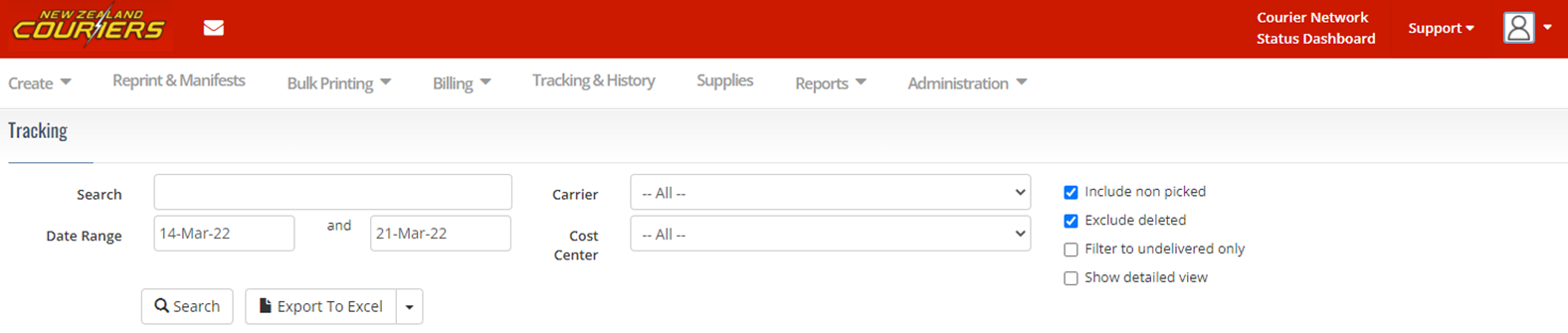
Tracking Field Descriptions
| Field | Description |
|---|---|
Search | The search function will search all user input fields for results. E.g., the receiver's name, delivery reference, street name, or tracking number. If you leave this field blank, all results will show. |
Carrier | You can search for consignments by the carrier, e.g. if you only want to see items sent on a 2-day service or international items only. |
Date Range | The date range will default to the past week. You can change the search date range as needed. |
Cost Centre | You can search for results from a specific cost centre if you have allocated cost centres. |
| This will include tickets in the search result that have not yet had a pickup scan from New Zealand Couriers. |
| This will hide any tickets marked as ‘deleted’ by a user. |
| This will only include items in the search results that have not completed a delivery yet. |
| This will display the search results with more details such as the manifest number of the item. |
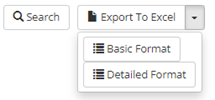
Export To Excel | There are two format options, ‘Basic Format’ and ‘Detailed Format’. Please use the detailed format for invoice reconciliation and remember to exclude non-picked-up items, as you are not charged for items that have not been scanned as picked up. For more information, please refer to the guide for invoice reconciliation. |




Your search results will display like the below:
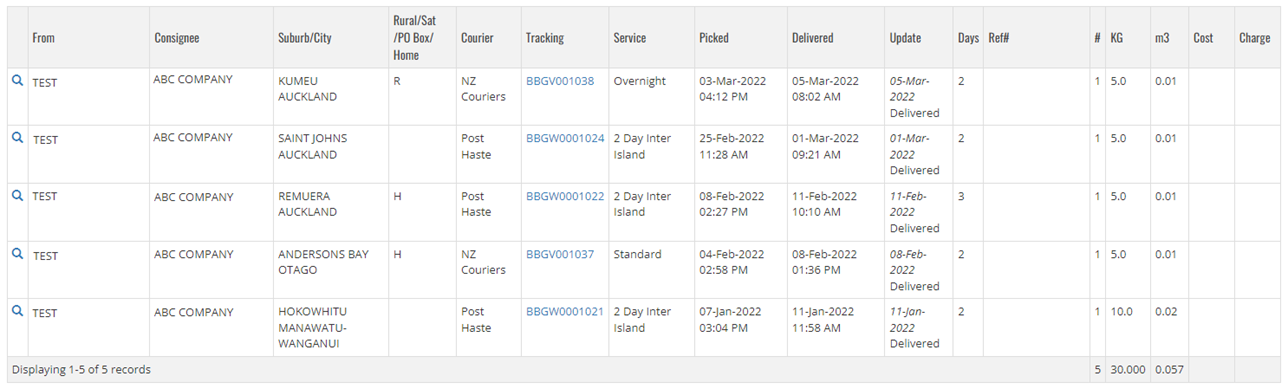
To find out more information on an item, click the magnifying glass icon next to it.
Search Results Field Descriptions
| Field | Description |
|---|---|
From | Which site the item was sent from? |
Consignee | Taken from the ‘Name’ field on the sending screen. |
Suburb | The location the item has been sent to. |
Rural / SAT / PO Box / Home | R = Rural Delivery, S = Saturday Delivery, P = PO Box Delivery, H = Home Delivery (residential delivery) |
Tracking | This is the tracking number; click it to view Track & Trace details on the New Zealand Couriers website. |
Service | This will show the service the item was sent on. |
Picked | Shows the date the item was scanned and picked up. |
Delivered | Shows the date the item was scanned and delivered. |
Update | Shows the latest update on the item. An exclamation mark will appear if there is an exception to the usual delivery service. |
Ref # | This is the delivery reference entered for the item when the label was created. |
Related Articles
GoSweetSpot: Site Settings
Site Settings can be found under Administration. The Site Settings page allows you to customise your GoSweetSpot page. Click to Zoom The Site Settings tab will take you to the Site Preferences & Settings screen. Click to Zoom Description of Site ...GoSweetSpot: Reprint & Manifests
The Reprint & Manifests section will show recently created tickets. Printed tickets can only be used once; as soon as a ticket has been scanned by New Zealand Couriers will show up on your Manifest as being used If your ticket fails to print, has ...GoSweetSpot: Webhooks
Description GSS can provide feedback to your site using webhooks for certain action triggers. Actions that can be subscribed to include: Shipment created Shipment pickup registered by courier Shipment delivery registered by courier Shipment tracking ...GoSweetSpot: Shipments
Get Shipment Updates Description Get status updates for shipments. Requests Method: GET Content Type: application/json URL: https://help.nzcouriers.co.nz/gosweetspot-api-integration/gosweetspot-shipments Headers access_key : your unique API key ...GoSweetSpot: Models
Available Rate Model Attribute Type Description quoteId Guid Unique rates calculation identifier. carrierId integer Id of carrier. carriername string Display name of courier provider. deliverytype string Courier delivery/service type. cost decimal ...