GoSweetSpot: How to create a Return Ticket
In some cases, it's necessary to create a Return Ticket, also known as Reverse Logistics.
How to create a Return Ticket
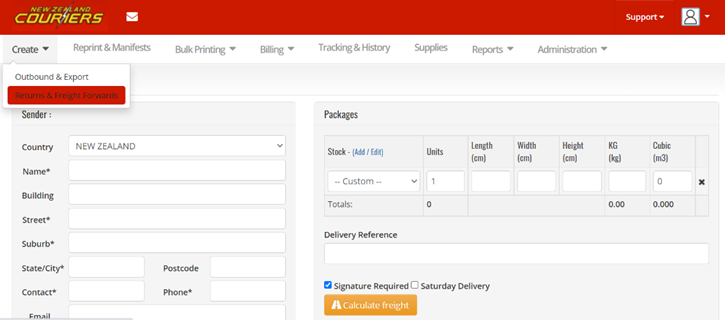
- Go to Create, then select Returns & Freight Forward
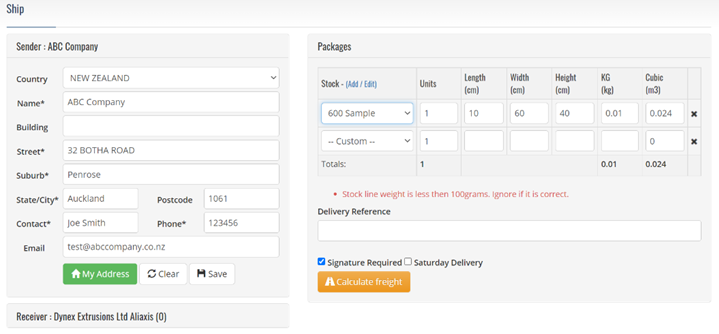
- Complete the Pickup Address fields and select package size
- In the Delivery Reference field, include internal references
- Click on Calculate Freight
- Click on Go



Choosing pickup style
- Email: will be emailed to the pickup point to print and affix to the item for Return
- Print: will need to be sent to the pickup point to affix to the item for Return
- Sender to phone 0800-800-841 to book a pickup
Related Articles
GoSweetSpot: How to create a Cost Centre
What is a Cost Centre? Cost centres assist with reporting and allow you to allocate different settings. In the Cost Centres section, you can: Set up and manage relevant cost centres Assign cost centres when creating your ticket Set a default cost ...GoSweetSpot: Shipments
Get Shipment Updates Description Get status updates for shipments. Requests Method: GET Content Type: application/json URL: https://help.nzcouriers.co.nz/gosweetspot-api-integration/gosweetspot-shipments Headers access_key : your unique API key ...GoSweetSpot: Models
Available Rate Model Attribute Type Description quoteId Guid Unique rates calculation identifier. carrierId integer Id of carrier. carriername string Display name of courier provider. deliverytype string Courier delivery/service type. cost decimal ...GoSweetSpot: Quick Function Buttons
When you type in the receiver address on the Ship page, you will find six Quick Function buttons appear at the bottom left of the Ship screen. They will speed up your despatch and reduce typing. Click to Zoom What do the Quick Function buttons mean? ...GoSweetSpot: How to send an International Consignment
To send an item to an international address, simply change the Country field on the sending screen. This will slightly change the screen to accommodate sending to an international address. Click to Zoom Description of Receiver fields for ...